Product Report
This document explains how to view the Product Report on the Jova POS platform, which provides information related to product variants, sales quantity, gross profit, and net profit.
Product Report Flow
The general flow is:
- Select Product Report from the Reports menu.
- Set filters such as Product Variation, Store, Date Range, and Sales.
- View information about sales quantity, total gross profit, and net profit for each product.
- Export the report data if needed in Excel format.
1. Accessing Product Report
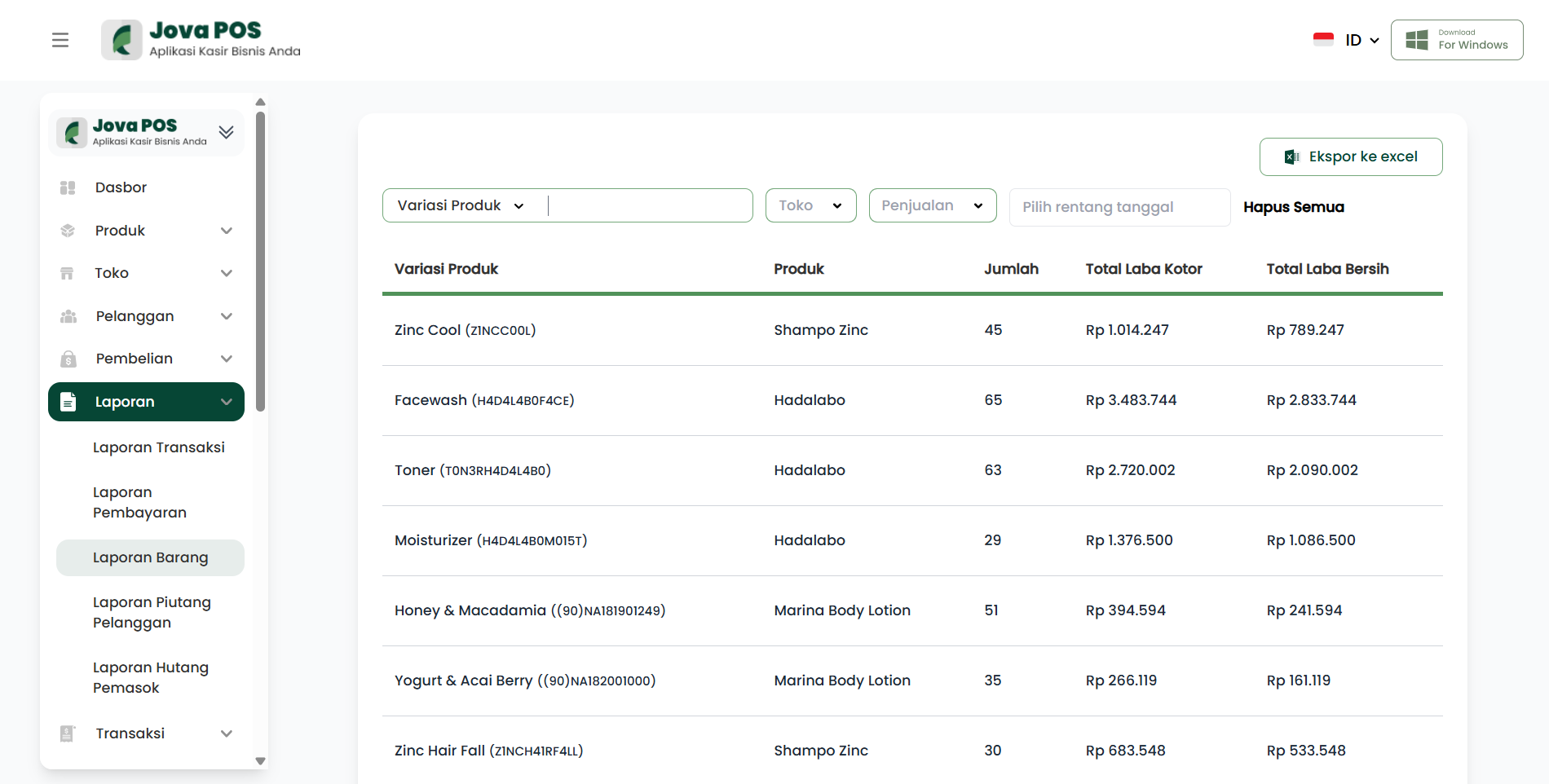
- In the sidebar, click Reports.
- Select Product Report.
2. Using Filters
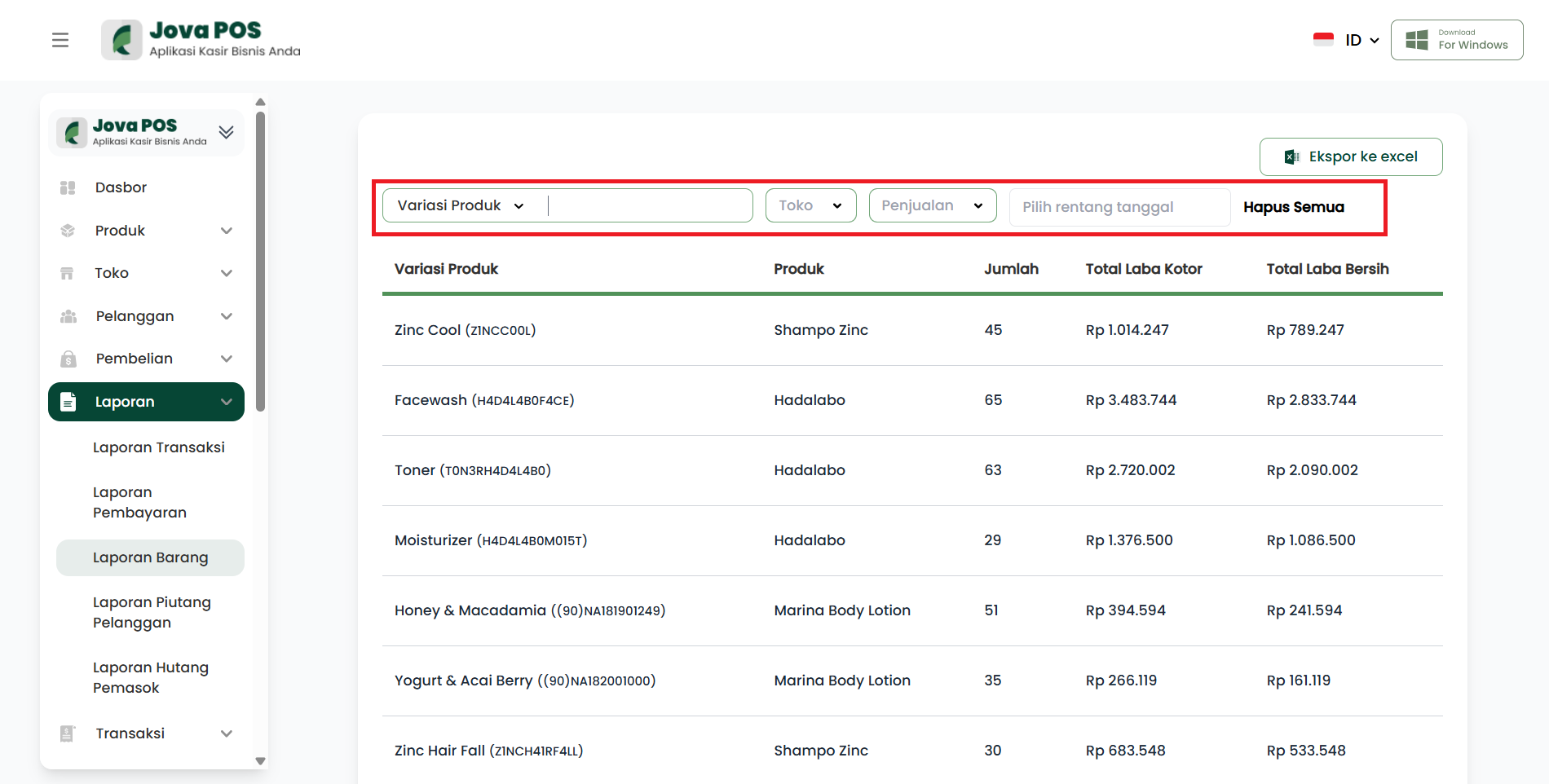
On the main Product Report page, you can:
- Filter by Product Variation, Store, Sales, and Date Range.
- Click Clear All to reset filters.
3. Viewing Product Report List
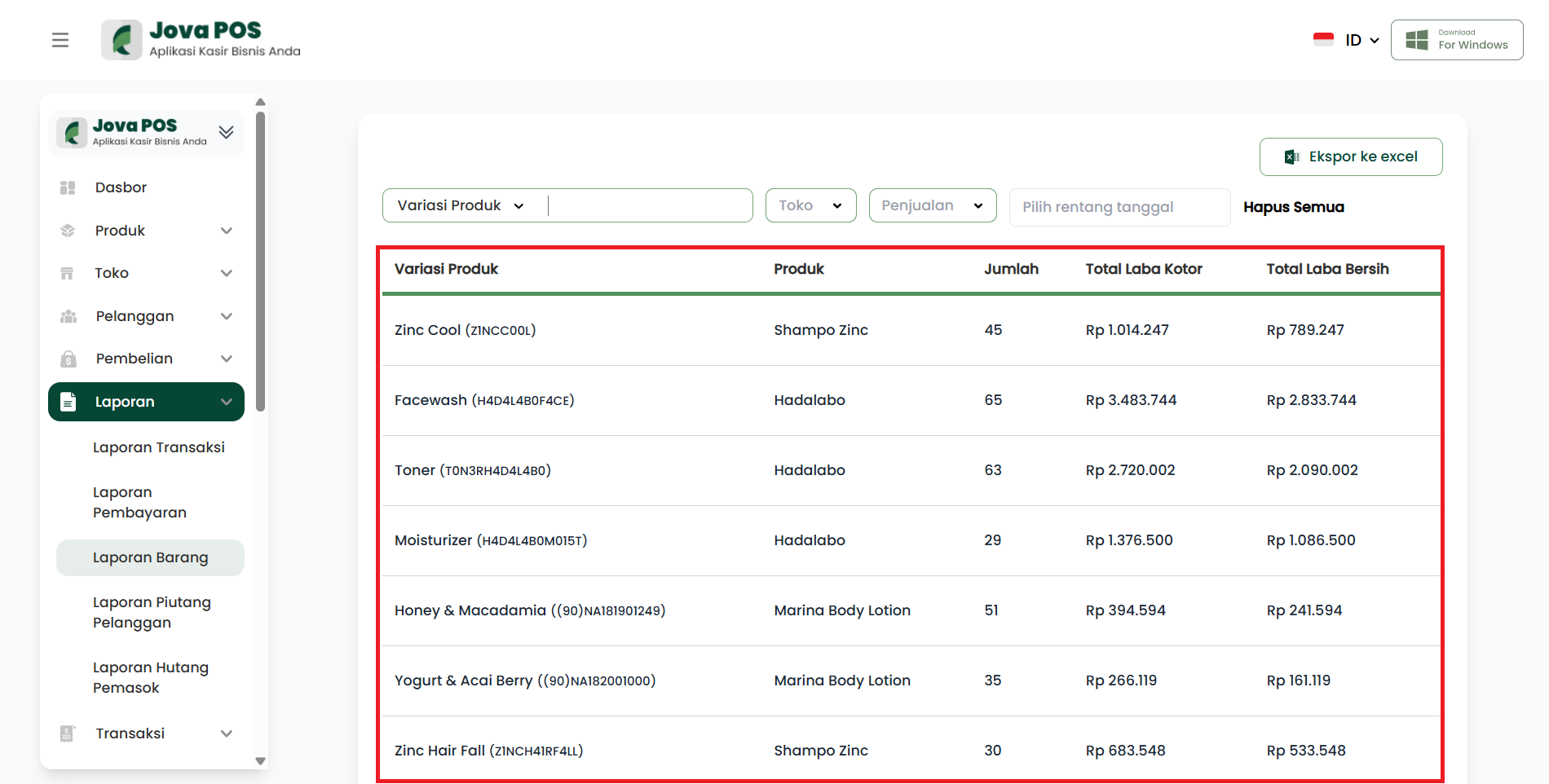
Here you will see a list of Product Variations that have been sold, complete with the following information:
- Product Variation: Product name and code.
- Product: The product name related to the variation.
- Quantity: Total units sold.
- Total Gross Profit: Gross profit generated from sold products.
- Total Net Profit: Net profit generated after deducting related costs.
4. Exporting Report Data
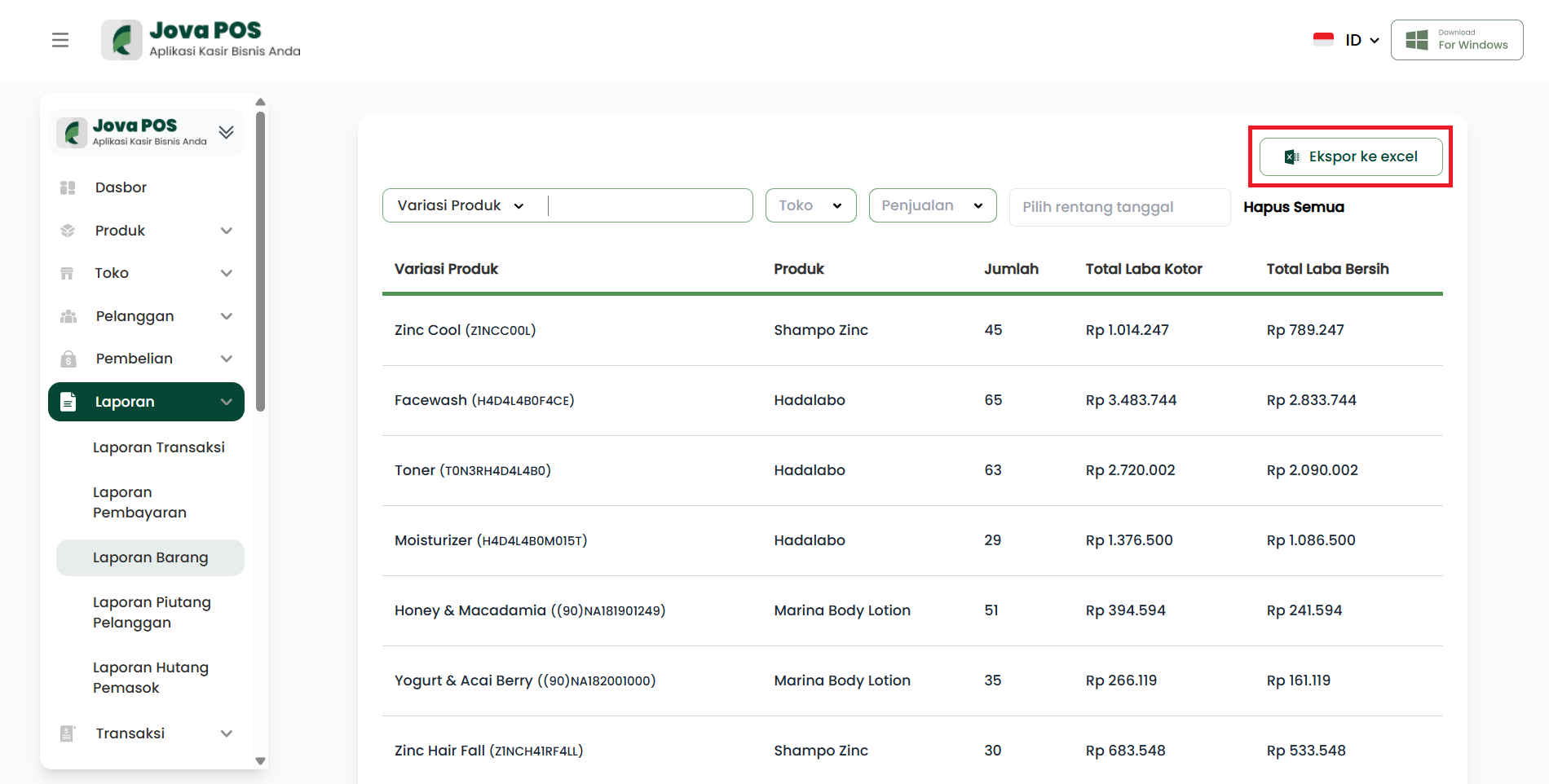
If you want to download the data in Excel format, click the Export to excel button.
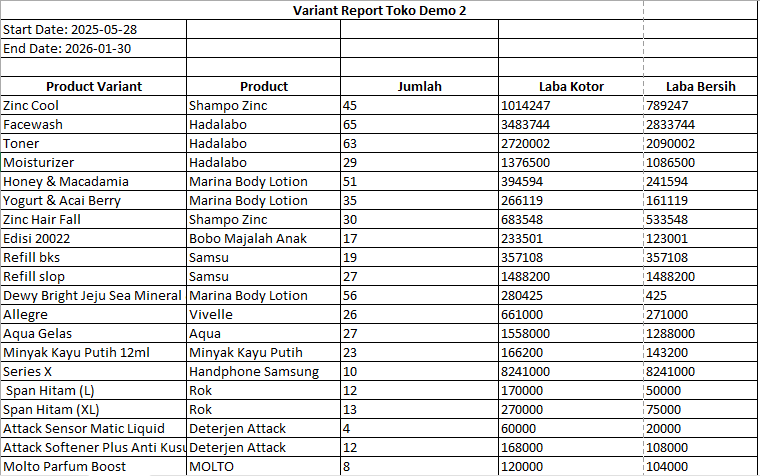
5. Product Report Details
This report provides a comprehensive overview of each product's performance based on variations, helping to analyze sales, gross profit, and net profit.
Conclusion
By using the Product Report, you can monitor your product performance in detail based on variations and sales categories, and evaluate the total profit generated.